An old device. A new purpose.
Your next departure.On your old Kindle.
Give your Kindle another job: a quiet departure board for the station that’s part of your everyday life.
Currently optimized for Kindle Paperwhite, 7th generation (Paperwhite 3).
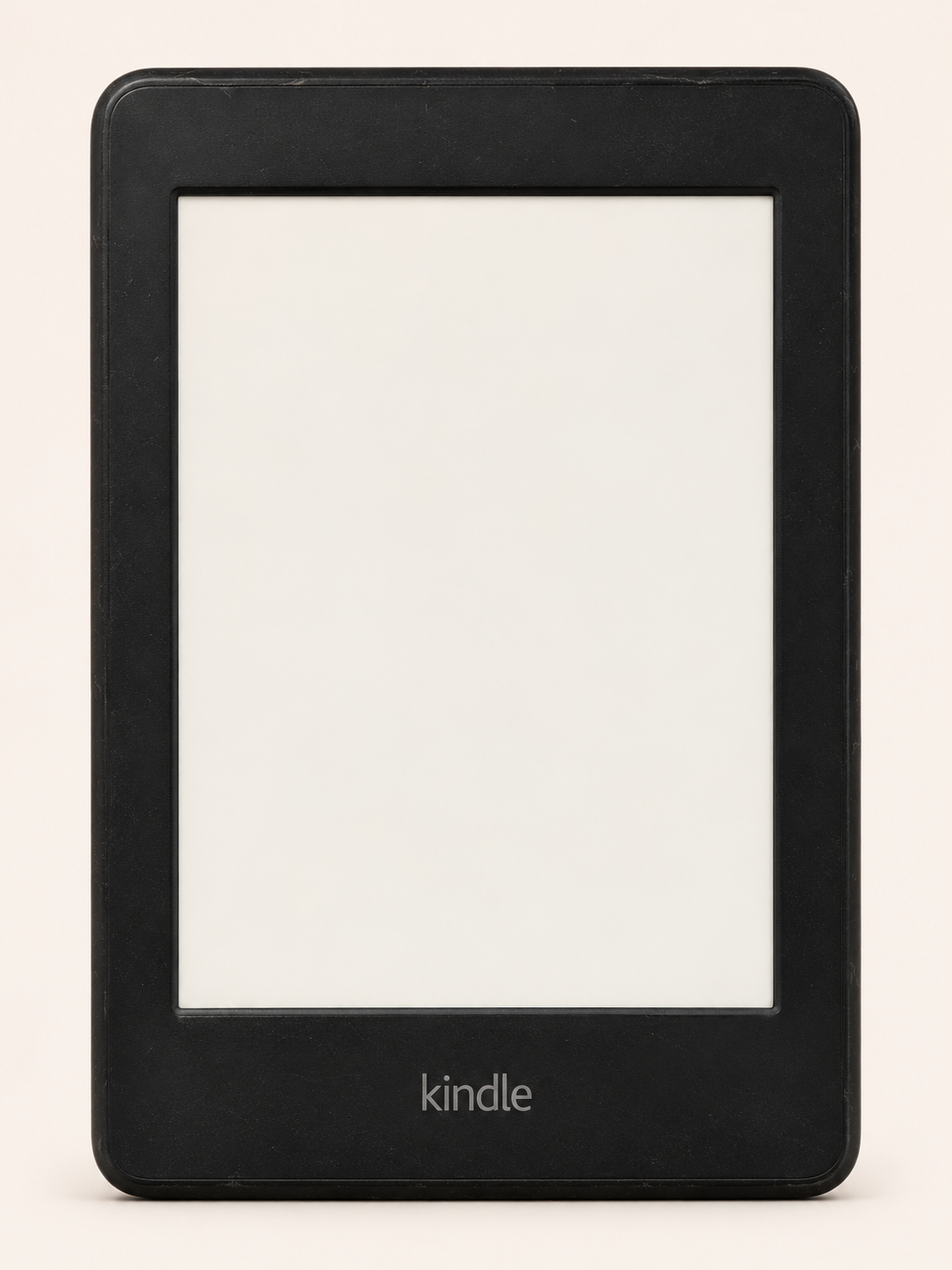
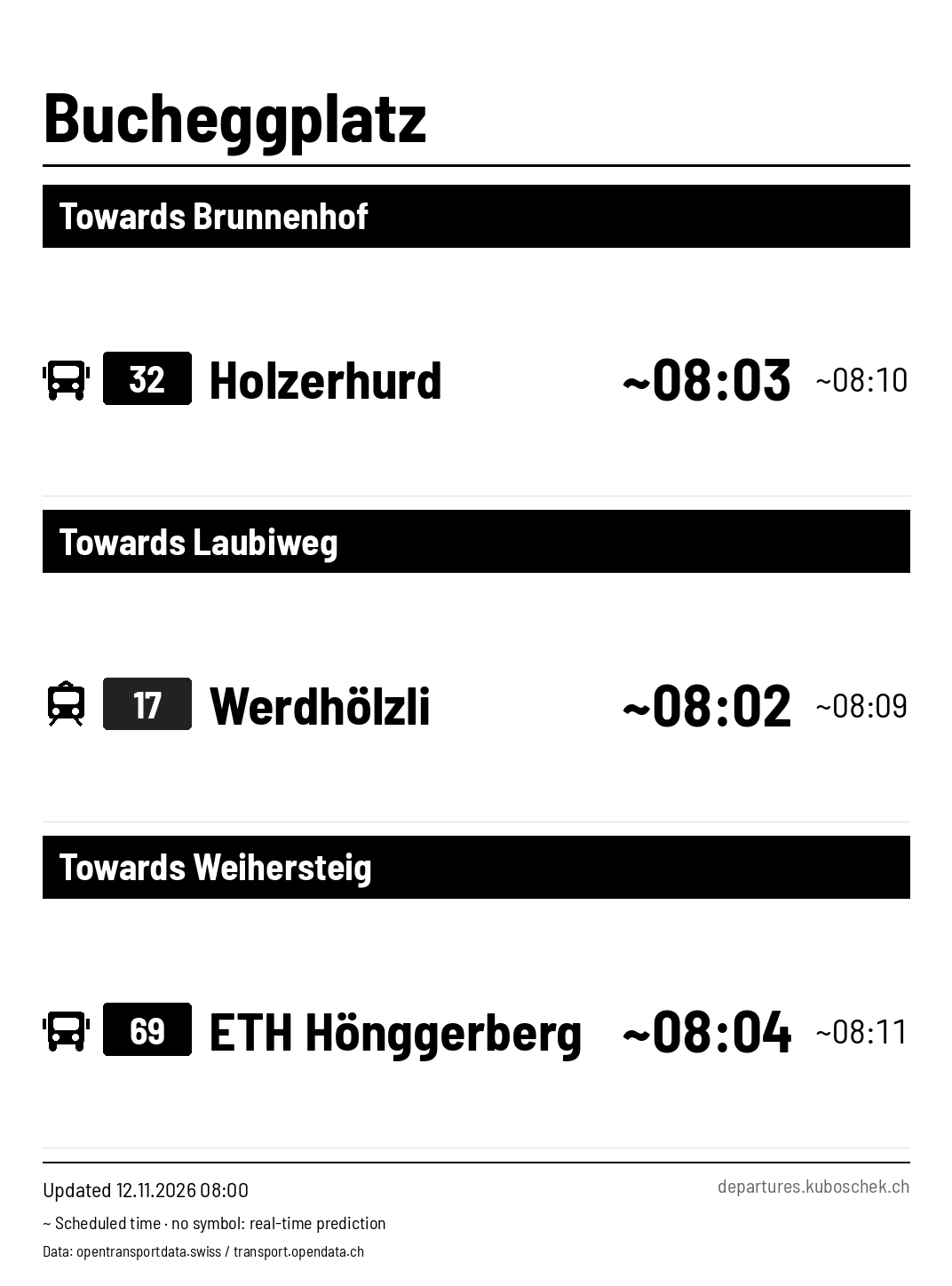
A glance is enough
The next two departures per line, with destinations and real-time predictions when available.
Your station
Swiss public transport departures for your chosen station. Trams, buses, trains and other modes remain easy to distinguish.
Quietly in the background
The Kindle turns Wi-Fi off between updates and sleeps until the next scheduled refresh.
01 / The idea
Too useful for a drawer.
I wanted to give an older Kindle a useful second life. Its E-Ink screen is a lovely fit for information you can read as you walk past. That became a departure board: a glance before leaving home, instead of reaching for my phone again.
A small personal project for something that’s already here. Your books stay on the Kindle – pressing the power button takes you back to reading.
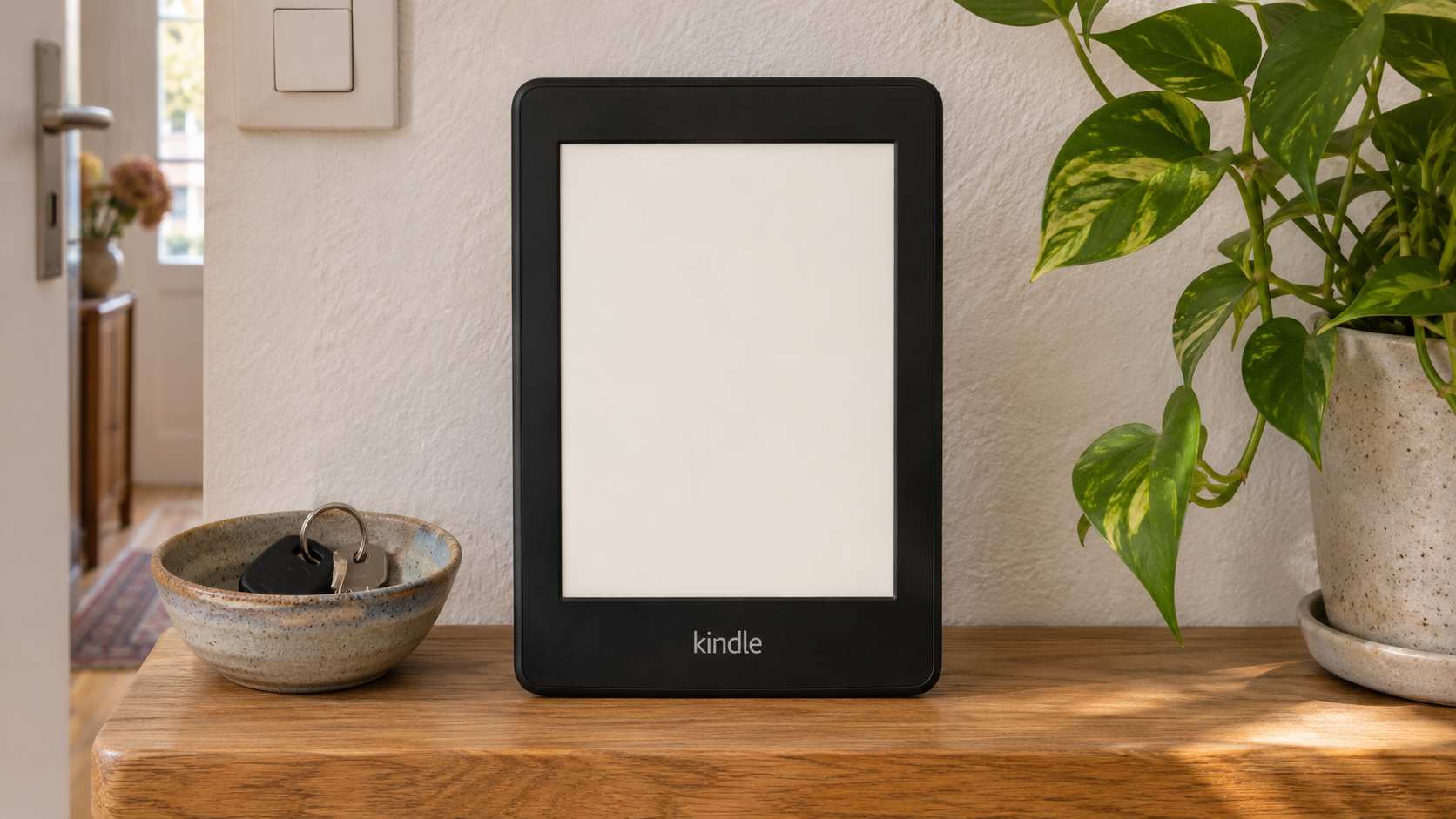
Illustrative device renders with example departures, not live information.
02 / Example display
Beyond the tram stop.
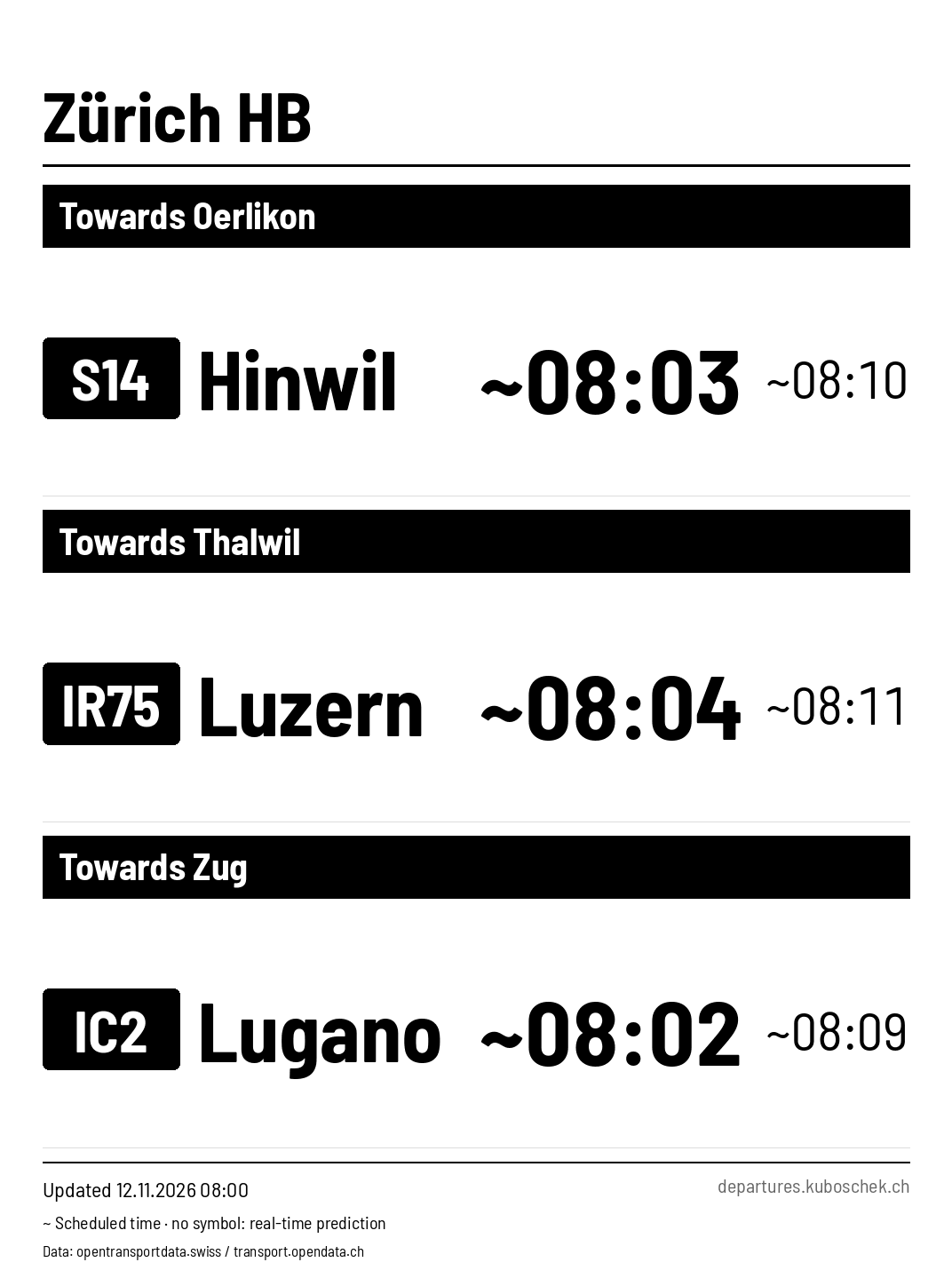
Train types are part of the line label. Mode icons help you scan mixed boards, with neutral badges for other services.
03 / How it works
From Kindle to departure board.
You’ll need a Kindle already prepared with WinterBreak2, Wi-Fi, a USB cable and a smartphone for setup.
An email address is optional and intended only for occasional service updates. No account is required.
To read again, press the power button while the Kindle is sleeping. Configure Departure Board in the library reopens setup with your saved station prefilled.
Download
Download the ZIP package to your computer. You don’t need KUAL or SSH to launch it.
Copy over USB
Extract its contents directly onto the Kindle: merge the documents and extensions folders with the existing ones. Safely eject the Kindle.
Start on the Kindle
Leave Wi-Fi on and open Start Departure Board in your library. The Kindle displays a QR code.
Set up with your phone
Scan the code, choose a station from the suggestions and select your language. Save – the board appears on its next refresh.
04 / Paperwhite 3
A new place for your Kindle.
The package includes the client, library launchers, a certificate bundle and instructions in four languages.
Currently optimized for Kindle Paperwhite, 7th generation (Paperwhite 3).
Download the client · ZIPAlready installed? Exit the board before copying. Updates preserve your device identity and settings. Other Kindle models are not optimized yet.